Sunday, October 16, 2016

HOW TO PUT COMMA or ANY OTHER CHARACTER IN MULTI LINE VALUE WHILE WRITING SQL QUERY IN SSMS

HOW TO PUT COMMA or ANY OTHER CHARACTER IN MULTI LINE VALUE WHILE WRITING SQL QUERY IN SSMS(SQL SERVER MANAGEMENT STUDIO)

There are situations when multiple COMMA separated values need to be passed to IN keyword in SQL Select or Update or Delete command(query or statement).

For an example if DBA has got certain list of Employee from HR to be updated with Terminated Flag equals to 'Yes' in Employee table.

Here is the list of Employees to be updated:

EmpID
4
56
10
34
67
79
12
656
565
55

DBA can copy the list and write the below query to actually confirm whether list contains all the "Active" Employee:

SELECT * FROM HR.Employees WHERE Empid IN (
4
56
10
34
67
79
12
656
565
55
)

The above query will certainly throw en error as Employee IDs are not comma delimited. In order to solve this issue we need to follow below steps:

  • Put cursor in the beginning of 56.
  • Press ALT+SHIFT Key.
  • Press the Down Arrow button on Keyboard.
  • Release the Down Arrow once reach till second last value i.e. 55.
  • Press the COMMA(,) button from Keyboard.
  • You are done and now you are ready to execute your query.

SELECT * FROM HR.Employees WHERE empid IN (
4
,56
,10
,34
,67
,79
,12
,656
,565
,55
)


Now DBA can run the Update Query to manipulate listed EmplD with Terminated Flag='Yes'

UPDATE HR.Employee Set Terminated='Yes' WHERE EmpID IN (

4
,56
,10
,34
,67
,79
,12
,656
,565
,55
)

That was the one mechanism , here are the steps to do it another way:

  • In the SSMS Query window, press CTRL+H.
  • Find and Replace window is opened.
  • Populate '\n' in Find What edit box.
  • Populate COMMA(,) in Replace with edit box.
  • Click on Replace All button.
  • You are done and now you are ready to execute your query.
PUT COMMA IN BETWEEN IN LARGE SET OF DATA IN SSMS(SQL SERVER MANAGEMENT STUDIO)
Find and Replace Line Feed (\n) with Comma(,)


There may be many other solutions like writing the code in Notepad or Notepad++ or creating macro or Concatenate values in Excel though above two are quite handy and viable as you don't have to use external application.


Sunday, January 24, 2016

SIKULI- HOW TO FETCH/EXTRACT TEXT FROM AN IMAGE || HOW TO GET TEXT FROM CAPTCHA IMAGE

SIKULI- HOW TO FETCH/EXTRACT/GET TEXT FROM A TEXT CAPTCHA IMAGE

If you are Automating an Application which has a submit FORM with TEXT CAPTCHA IMAGE, it is really tough to deal with it with tools like SELENIUM or any other software testing tools. SIKULI which is an IMAGE based tool , helps a lot to deal with this kind of situation.

Lets see the below form taken from a recruitment website:

GET EXTRACT FETCH TEXT FROM CAPTCHA IMAGE
Sample Recruitment FORM to Submit CV
Here is the small code to get text of CAPTCHA IMAGE in a variable :

GET EXTRACT FETCH TEXT FROM CAPTCHA IMAGE
Small Code To Capture Text from Captcha Image
Here is the output received from Sikuli script:


The same output can be populated to the CAPTCHA edit box to complete the test.

In order to get Image Text feature enabled in the Sikuli, user has to navigate to File>>Preferences>>more options>>check both option i.e. "allow searching for text" and "allow OCR" ON

you can copy the code mentioned below.please replace "test.png" with your captcha image screen shot in the below mentioned code:
a=find(test.png).text()
print a

Monday, June 9, 2014

WHICH IS THE BEST AND EASIEST LANGUAGE TO LEARN FOR SOFTWARE TESTER/TESTING

Which Programming/Scripting Language Software Tester should Learn?

Whenever some one wants to make(or switch) career in automated software testing, following question comes in his mind:
  • Which is the easiest programming /scripting language, a tester can learn quickly?
  • Which language may help a tester to get job quickly?
  • Which language may help a tester to work on multiple testing tools?
  • Which language may help a tester to survive in the job market for a longer term?
  • Which language may help a tester to get best salary package?
  • What are the languages mostly adopted by software(IT) industry for automation testing?
  • Will a QA personal be able to sustain with the languages , (s)he is aware of?
  • Which are the emerging programming/scripting languages for test automation?


Here are the major languages used by different software testing tools(automation):
  1. Java Script
  2. VB Script
  3. Java
  4. C#
  5. Python
  6. Ruby
  7. TCL
  8. Perl
  9. PHP
  10. Objective C
  11. C++
  12. R
  13. Groovy
  14. Clojure
  15. Gosu
  16. Lua
  17. Delphi Script
Let's see the below statistics collected from different community, job portal and blogs:


easiest programming language for software automated testing
Different Scripting/Programming Language used for Software Testing Comparison Chart
So its a tie between "Java" and "VB Script" for the first position ,followed by "C#" and "Python"  for second and third position successively. These stats are purely based on current market trends though every programming language has its own significance and it totally depends on culture , need and situation to adopt that language for test automation. for an example , if a company is using Microsoft .Net Framework package for developing its applications and products so eventually C# with VSTS and MTM will be their first choice for Test Automation, similarly if a company is into Telecom vertical so TCL/Python may be their preferred scripting language for test automation. Moreover, sometimes QA personal has to go with market trends and job availability rather than their own choice and favorite language. Let's see the below stats showing the % of Market Capture and Job Availability language wise:


% Of Market Share of Programming/Scripting Language used by different Automation Tools


% Of Job Market Share by Different Programming /Scripting Language used for Test Automation
% Of Job Market Share by Different Programming /Scripting Language used for Test Automation


Let's analyze each of the Test Automation Programming /Scripting Language in detail:

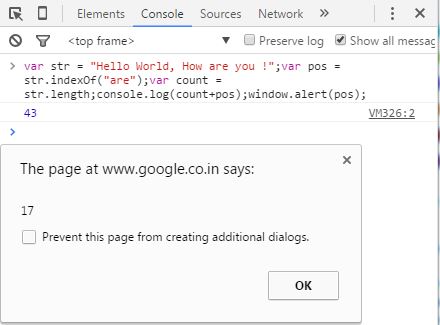
Java Script:- Java Script is dynamic server and client side language used to develop web, desktop and Mobile application. Because of its easy syntax and modular approach JS can be embedded easily to a web application. JS can be used with different contemporary automation tools like Selenium, Sahi, Watir, QUnit , Jasmine, Protactor etc.There are plenty of JS online tutorial and course available on internet for free. Codecademy, W3Schools, ALISON, Udacity, Microsoft Virtual Academy(MVA) are few of them. If you open the Devloper Tools(Press F12 in your browser) and Run the following command in Console widow : var str = "Hello World, How are you !";var pos = str.indexOf("are");var count = str.length;console.log(count+pos);window.alert(pos);
You will get output as 17 and 43 i.e. Index of string "are"=17, string length=26 and Total of both the value=17+26=43.

JS is easy and good scripting language for novice to move towards automation testing


VB Script:- VB Script is one of the easiest language to learn for a novice tester.With the strong market capture by QTP(UFT) and Test Complete, VB Script is one of the most popular language for software testing.If you have chosen software testing as your career then VB Script is a must language to learn because of large job market captured by QTP(UFT).

JAVA:- Whenever it comes to Automate Web Based Application, Java stands first among all its competitor. Because of its robust OOPs structure and light weight, JAVA is language of millennium.
Here are few reasons why a software tester should use JAVA for Test Automation:
  1. JAVA is being used by most of the Test Automation Tools.
  2. JAVA is one of the most secured programming language.
  3. JAVA is strongly Typed programming language.
  4. JAVA is one of the fasted programming language.
  5. JAVA is cross platform programming language and is used to Test and Automate mobile/web applications.
  6. JAVA has strong support community and forum.
  7. JAVA is most widely language used for software testing and automation.
  8. Most of the IDE like Eclipse...etc. support JAVA libraries.
  9. Last but not the least...:) JAVA has maximum opportunity in the Job Market for Software Tester.
In the recent years languages like Python ,Ruby and other languages are also in demand though JAVA is best in its CLASS and will continue to grow.

The Testing Tools using JAVA are Selenium,Abbot, SOAPUI, Sikuli, Robot Framework ...etc.

C#:- C# is widely used language for software development. With its perfect combination with microsoft .NET framework,C# has also emerged stronger for Automation Framework development.Those were the days when VSTS2008 was not fully featured enabled, Now if we look at the new VSTS2015, there is huge difference since then.Not only because of VSTS Coded UI but also there are many more reasons to use C# for software automation testing.

  1. C# is recommended language if QA team is using MTM/VSTS(Coded UI)/TFS for Test Automation.
  2. C# is one of the best OOPs supported language.
  3. Not only for Web based but also for Windows based/Mobile application, C# is perfect language for Test Automation.
  4. C# supports all kind of Testing i.e. Unit,Functional, Load, Performance,DB ,API and Web Services Testing.
C# supported Testing tools are Selenium, VSTS(Coded UI),AutoComplete, Cucumber, RenoRex, Gauge,Test Studio....etc.

Python:-  Current era is of Big Data and Data Scientist. With the advent of  terms "Machine Learning", "Hadoop", "BI","SIP(Session Initiation Protocol)" and "Web Scraping", Python has become choice for every one, Whether you are a Developer, Administrator, Analyst, QA Analyst or any other IT professional , python has made a significant contribution to each role. Here are few reasons why a software tester should use PYTHON for Test Automation:


  1. Python is one of the easiest language because of its easy syntax and structure.
  2. Python is free and open source scripting language.
  3. Variety of Testing tools,support python to automate Web/UI/API/Load/DB/Performance,Web Service and telecom(protocol) application(s).
  4. Python has rich list of libraries to be  called as per need of situation and application.
Python supported Testing tools are Selenium, Robot Framework, Pytest, Nose, Behave, FitNesse, Lettuce, Automa , SIKULI....etc.

Ruby:- Whenever it comes to automate Web Application with "WATIR" or "CUCUMBER", Ruby stands first among all its competitor language. Ruby is also one of the easiest language from syntax and structure standpoint.

Conclusion:- Whether you would like to learn JAVA,Python,Ruby,C# ,VB Script or any other programming language, its totally your choice though one thing for sure is important over here is , one must have strong grip over a programming language because whatever language is in demand from job /tool perspective if your basic is clear and you know  how to define a Test Automation Framework , you can easily pick and adopt any programming language as per need of Test Automation.

Here is the list of video(s) shared on youtube to get better understanding and comparison among different programming language.


Saturday, April 5, 2014

Fatal error: Maximum execution time of 30 seconds exceeded in C:\xampp\htdocs\wordpress\wp-includes\class-http.php on line 1327 in WorPress new Theme Installation

Fatal error: Maximum execution time of 30 seconds exceeded in C:\xampp\htdocs\wordpress\wp-includes\class-http.php on line 1327

Fatal error: Maximum execution time of 30 seconds exceeded in C:\xampp\htdocs\wordpress\wp-includes\class-http.php on line 1327

In order to fix this issue we need to change in php.ini file. Please perform the following steps to fix the issue of "Fatal error: Maximum execution time of 30 seconds exceeded in C:\xampp\htdocs\wordpress\wp-includes\class-http.php on line 1327":

  • Open the XAMPP Control Panel.
XAMPP Control Panel

  • Navigate to Config>>PHP(php.ini) for Apache Service.

Fatal error: Maximum execution time of 30 seconds exceeded
  • Search the word "max_execution_time" in the php.ini file.
max_execution_time
Change the "max_execution_time" in the php.ini file
  • Set the time from 30 to 300.
  • Save the file.
  • Stop the Apache service.
  • Start the Apache service.
  • Try to install new wordpress theme.
Issue should be fixed now.

Fatal error: Maximum execution time of 30 seconds exceeded in C:\xampp\htdocs\wordpress\wp-includes\class-http.php on line 1327

Fatal error: Maximum execution time of 30 seconds exceeded in C:\xampp\htdocs\wordpress\wp-includes\class-http.php on line 1327

Tuesday, October 15, 2013

Create and Perform Web Services Testing through SOAP UI || WSDL Testing in SOAP UI

Create and Perform Web Services Testing through SOAP UI || WSDL Testing in SOAP UI

What is Web Services? Web Services consist of Web Method being called by an application through different protocols like SOAP(Simple Object Access Protocol).To Test these web services we need to convert these web method to XML/WSDL(Web Services Description Language) format.

How to Create a Web Service Application in .Net C#? We need to perform the following steps:

  • Open the Visual Studio VS 2008/2010/2012
  • Navigate to File>>New>>Project
  • In the New Project window choose the .NET Framework 3.5 from the top drop down>>navigate to Installed Templates>>Visual C#>>Web>>ASP.NET Web Service Application 
  • Populate the Solution Name and Location and click on Ok button.
  • Click Ctrl+F5
    Web Service Testing with SOAP UI
    CREATE A WEB SERVICE APPLICATION IN .NET C#
  • The Web Service will look like the following image:
sample web service created in visual studio
SAMPLE WEB SERVICE CREATED IN VS
  • Add the following Code to the Web Method
 [WebMethod]
        public string jointwostg(string firstname,string secondname)
        {
            return System.String.Concat(firstname, secondname);
        }
Web Service Web Method to Add Two strings
WEB SERVICE WEB METHOD TO ADD TWO STRINGS
  • Click on Service Description link or go toAddress bar and add ?WSDL at the end of .asmx file i.e. http://localhost:11561/Service1.asmx?WSDL

sample web service
SAMPLE WEB SERVICE
  • The WSDL XML will look like the following image:

sample wsdl xml
SAMPLE WSDL XML IMAGE
  • Open the SOAPUI application and Navigate to File>>New soapUI Project and Populate the WSDL file address i.e. http://localhost:11561/Service1.asmx?WSDL to Intial WSDL/WADL box and click on OK button

sample web service testing with soapui
SAMPLE WEB SERVICE TESTING WITH SOAPUI
  • Select the Operation jointwostg and press Ctrl+N, At the right hand side Request window gets opened.

Test Case Preparation in SoapUI
TEST CASE PREPARATION IN SOAPUI
  • Delete the ? mark from <tem:firstname>?</tem:firstname> and Populate 'John' and similarly delete the ? mark from <tem:secondname>?</tem:secondname> and Populate ' Benson' and click on Submit request to specified endpoint URL(green button on top). It will show the concatenated string i.e 'John Benson'
WSDL TESTING IN SOAPUI
This was just a sample soapui test, we can enhance our testing with different complex webmethods.

How to create a WSDL file from webservice webmethod? If you add ?WSDL at the last of .ASMX(Active Server Method Extension) in the address bar and press the enter key. The WSDL file gets automatically created.

Which is the best book for web services testing with soapui? "Web Services Testing with soapUI" by Charitha Kankanamge(PACKT Publishing)

Create and Perform Web Services Testing through SOAP UI || WSDL Testing in SOAP UI

Thursday, September 19, 2013

PRICE LIST OF NOKIA LUMIA IN INDIA || FEATURES AND PRICE OF NOKIA LUMIA IN INDIA

PRICE LIST OF NOKIA LUMIA IN INDIA || FEATURES AND PRICE OF NOKIA LUMIA

Nokia Lumia smartphones with Windows Phone 8 come with unique features like Nokia Music+, HERE Maps, MS Office on the go and a super fast 4G Internet connection for top-of-the range Windows Phones.

PRICE LIST OF NOKIA LUMIA
NOKIA LUMIA 1020 PRICE IN INDIA


Model
Approx.Price(INR)
Specification
Lumia 1020
40000(Expected)
Please navigate to NOKIA LUMIA 1020 PRICE,FEATURES AND TECHNICAL SPECIFICATION for more details
Processor: Dual-Core 1.5 GHz
RAM: 2GB
OS: Windows Phone 8
Main Camera(Rear): 41 MP Front: 1.2 MP(HD)
Radio: Internet and FM
Wifi: WLAN IEEE 802.11
Bluetooth: Bluetooth 3.0
USB: USB 2.0
Wi-Fi hotspot: Can connect up 8 wifi enabled devices
WCDMA DL: HSDPA - 42.2 Mbps UL: HSUPA - 5.76 Mbps
GSM DL: EGPRS 236.8 kbps UL: EGPRS 236.8 kbps
Maximum standby time: 16 days
Maximum talk time (2G): 19.1 hr./(3G): 13.3 hr.
Wireless Charging
Lumia 925
30300-33500
Please navigate to NOKIA LUMIA 925 PRICE,FEATURES AND TECHNICAL SPECIFICATION details
Processor: Dual-Core 1.5 GHz
RAM: 1 GB
OS: Windows Phone 8
Main Camera(Rear): 8.7 MP Front: 1.2 MP(HD)
Radio: Internet and FM
Wifi: WLAN IEEE 802.11
Bluetooth: Bluetooth 3.0
USB: USB 2.0
Wi-Fi hotspot: Can connect up 8 wifi enabled devices
WCDMA DL: HSDPA - 42.2 Mbps UL: HSUPA - 5.76 Mbps
GSM DL: EGPRS 236.8 kbps UL: EGPRS 236.8 kbps
Maximum standby time: 18 days
Maximum talk time (2G): 18.3 hr./(3G): 12.8 hr.
Wireless Charging
Lumia 625
17700-20000
Please navigate to NOKIA LUMIA 625 PRICE,FEATURES AND TECHNICAL SPECIFICATION for more details
Processor: Dual-Core 1.2 GHz
RAM: 512 MB
OS: Windows Phone 8
Main Camera(Rear): 5.0 MP Front: 0.3 MP
Radio: Internet and FM
Wifi: WLAN IEEE 802.11
Bluetooth: Bluetooth 4.0
USB: USB 2.0
Wi-Fi hotspot: Can connect up 8 wifi enabled devices
WCDMA DL: HSDPA - 42.2 Mbps UL: HSUPA - 5.76 Mbps
GSM DL: EGPRS 236.8 kbps UL: EGPRS 236.8 kbps
Maximum standby time: 23 days
Maximum talk time (2G): 24.0 hr./(3G): 15.0 hr.
Lumia 520
8820-10099
Please navigate to NOKIA LUMIA 520 PRICE,FEATURES AND TECHNICAL SPECIFICATION for more details
Processor: Dual-Core 1.0 GHz
RAM: 512 MB
OS: Windows Phone 8
Camera : 5.0 MP
Radio: Internet and FM
Wifi: WLAN IEEE 802.11
Bluetooth: Bluetooth 4.0
USB: USB 2.0
Wi-Fi hotspot: Can connect up 8 wifi enabled devices
WCDMA DL: HSDPA - 21.1 Mbps UL: HSUPA - 5.76 Mbps
GSM DL: EGPRS 236.8 kbps UL: EGPRS 236.8 kbps
Maximum standby time: 16 days
Maximum talk time (2G): 17.0 hr./(3G): 10.0 hr.
Lumia 620
12700-14500
Please navigate to NOKIA LUMIA 620 PRICE,FEATURES AND TECHNICAL SPECIFICATION for more details
Processor: Dual-Core 1.0 GHz
RAM: 512 MB
OS: Windows Phone 8
Camera : 5.0 MP
Wifi: WLAN IEEE 802.11
Bluetooth: Bluetooth 4.0
USB: USB 2.0
Wi-Fi hotspot: Can connect up 8 wifi enabled devices
WCDMA DL: HSDPA - 21.1 Mbps UL: HSUPA - 5.76 Mbps
GSM DL: EGPRS 236.8 kbps UL: EGPRS 236.8 kbps
Maximum standby time: 13 days
Maximum talk time (2G): 15.0 hr./(3G): 10.0 hr.
Lumia 720
16500-18500
Please navigate to NOKIA LUMIA 720 PRICE,FEATURES AND TECHNICAL SPECIFICATION for more details
Processor: Dual-Core 1.0 GHz
RAM: 512 MB
OS: Windows Phone 8
Main Camera(Rear): 6.7 MP Front: 1.3 MP(HD)
Radio: Internet and FM
Wifi: WLAN IEEE 802.11
Bluetooth: Bluetooth 4.0
USB: USB 2.0
Wi-Fi hotspot: Can connect up 8 wifi enabled devices
WCDMA DL: HSDPA - 21.1 Mbps UL: HSUPA - 5.76 Mbps
GSM DL: EGPRS 236.8 kbps UL: EGPRS 236.8 kbps
Maximum standby time: 21 days
Maximum talk time (2G): 24.0 hr./(3G): 13.3 hr.
Wireless Charging
Lumia 820
20500-24000
Please navigate to   NOKIA LUMIA 820 PRICE,FEATURES AND TECHNICAL SPECIFICATION for more details
Processor: Dual-Core 1.5 GHz
RAM: 1 GB
OS: Windows Phone 8
Main Camera(Rear): 8.7 MP Front: 1.2 MP(HD)
Radio: Internet and FM
Wifi: WLAN IEEE 802.11
Bluetooth: Bluetooth 3.0
USB: USB 2.0
Wi-Fi hotspot: Can connect up 8 wifi enabled devices
WCDMA DL: HSDPA - 42.2 Mbps UL: HSUPA - 5.76 Mbps
GSM DL: EGPRS 236.8 kbps UL: EGPRS 236.8 kbps
Maximum standby time: 15 days
Maximum talk time (2G): 15.4 hr./(3G): 8.1 hr.
Wireless Charging
Lumia 920
27000-32500
Please navigate to NOKIA LUMIA 920 PRICE,FEATURES AND SPECIFICATION for more details
Processor: Dual-Core 1.5 GHz
RAM: 1 GB
OS: Windows Phone 8
Main Camera(Rear): 8.7 MP Front: 1.3 MP(HD)
Radio: Internet and FM
Wifi: WLAN IEEE 802.11
Bluetooth: Bluetooth 3.0
USB: USB 2.0
Wi-Fi hotspot: Can connect up 8 wifi enabled devices
WCDMA DL: HSDPA - 42.2 Mbps UL: HSUPA - 5.76 Mbps
GSM DL: EGPRS 236.8 kbps UL: EGPRS 236.8 kbps
Maximum standby time: 19 days
Maximum talk time (2G): 19.0 hr./(3G): 11.0 hr.
Wireless Charging
Lumia 510
6000-8000
Please navigate to  NOKIA LUMIA 510 PRICE,FEATURES AND SPECIFICATION for more details
RAM: 256 MB
OS: Windows Phone 7.8
Main Camera(Rear): 5 MP
Radio: FM
Wifi: WLAN IEEE 802.11
Bluetooth: Bluetooth 2.1
USB: USB 2.0
Wi-Fi hotspot: Can connect up 5 wifi enabled devices
WCDMA DL: HSDPA - 7.2 Mbps UL: HSUPA - 384 Kbps
GSM DL: EGPRS 236.8 kbps UL: EGPRS 236.8 kbps
Maximum standby time: 30 days
Maximum talk time (2G): 16.2 hr./(3G): 8.4 hr.
Lumia 610
9000-11000
Please navigate to NOKIA LUMIA 610 PRICE,FEATURES AND SPECIFICATION for more details
RAM: 256 MB
OS: Windows Phone 7.8
Main Camera(Rear): 5 MP
Radio: FM
Wifi: WLAN IEEE 802.11
Bluetooth: Bluetooth 2.1
USB: USB 2.0
WCDMA DL: HSDPA - 7.2 Mbps UL: HSUPA - 384 Kbps
GSM DL: EGPRS 236.8 kbps UL: EGPRS 236.8 kbps
Maximum standby time: 32 days
Maximum talk time (2G): 12.1 hr./(3G): 10.0 hr.

NOKIA LUMIA 720 PRICE IN INDIA || PRICE LIST OF NOKIA LUMIA
NOKIA LUMIA 720 PRICE IN INDIA

PRICE LIST OF NOKIA LUMIA IN INDIA || FEATURES AND PRICE OF NOKIA LUMIA
PRICE LIST OF NOKIA LUMIA IN INDIA AND FEATURES

Sunday, September 8, 2013

NOKIA LUMIA AIRTEL INTERNET SETTING|| NOKIA PHONE GPRS SETTING

NOKIA LUMIA AIRTEL INTERNET SETTING || NOKIA PHONE GPRS SETTING

NOKIA LUMIA AIRTEL INTERNET SETTING || NOKIA PHONE GPRS SETTING

In all the Android based phone your packet data or internet gets automatically configured as per the service provider configuration, the moment you insert the SIM in the Phone though in the Windows based phone like NOKIA Lumia you need to configure it manually. Here are the steps to configure the APN (Access Point Network) in Windows Phone (NOKIA Lumia):
  1. Go to Menu>>Settings>>Access Point>>Add a new Profile
  2. Connection Name>>Airtel GPRS
  3. INTERNET APN
  4. Access Point Name>>airtelgprs.com
  5. USERNAME>>Default i.e. Blank
  6. PASSWORD>>Default i.e. Blank
  7. PROXY ADDRESS>>Default i.e. Blank
  8. PROXY PORT>>Default i.e. Blank
  9. NETWORK TYPE>>Default i.e. IPv4
  10. AUTHENTICATION>>Default i.e. None
  11. MMS APN
  12. MMS Access Point Name:airtelmms.com
  13. USERNAME>>Default i.e. Blank
  14. PASSWORD>>Default i.e. Blank
  15. PROXY ADDRESS>>100.1.201.172
  16. PROXY PORT>>8799
  17. MMSC>>http://100.1.201.172:10021/mmsc
  18. NETWORK TYPE>>Default i.e. IPv4
  19. AUTHENTICATION>>Default i.e. None
Please save the settings and restart your phone.

For Latest NOKIA Lumia Price in India Click here Nokia Lumia Price List in India

NOKIA LUMIA AIRTEL INTERNET SETTING || NOKIA PHONE GPRS SETTING

NOKIA LUMIA BSNL INTERNET SETTING|| NOKIA PHONE GPRS SETTING

NOKIA LUMIA BSNL INTERNET SETTING || NOKIA PHONE GPRS SETTING

NOKIA LUMIA BSNL INTERNET SETTING || NOKIA PHONE GPRS SETTING

In all the Android based phone your packet data or internet gets automatically configured as per the service provider configuration, the moment you insert the SIM in the Phone though in the Windows based phone like NOKIA Lumia you need to configure it manually. Here are the steps to configure the APN (Access Point Network) in Windows Phone (NOKIA Lumia):
  1. Go to Menu>>Settings>>Access Point>>Add a new Profile
  2. Connection Name>>BSNL GPRS
  3. INTERNET APN
  4. Access Point Name>>bsnlnet
  5. USERNAME>>Default i.e. Blank
  6. PASSWORD>>Default i.e. Blank
  7. PROXY ADDRESS>>Default i.e. Blank
  8. PROXY PORT>>Default i.e. Blank
  9. NETWORK TYPE>>Default i.e. IPv4
  10. AUTHENTICATION>>Default i.e. None
  11. MMS APN
  12. MMS Access Point Name:bsnlmms
  13. USERNAME>>Default i.e. Blank
  14. PASSWORD>>Default i.e. Blank
  15. PROXY ADDRESS>>10.210.10.11
  16. PROXY PORT>>8080
  17. MMSC>>http://bsnlmmsc.in:8514/
  18. NETWORK TYPE>>Default i.e. IPv4
  19. AUTHENTICATION>>Default i.e. None
Please save the settings and restart your phone.

For Latest Nokia Lumia Price in India Click Here Latest Price of Nokia Lumia in India

NOKIA LUMIA BSNL INTERNET SETTING || NOKIA PHONE GPRS SETTING

NOKIA LUMIA VODAFONE INDIA INTERNET SETTING|| NOKIA PHONE GPRS SETTING

NOKIA LUMIA VODAFONE INTERNET SETTING || NOKIA PHONE GPRS SETTING

NOKIA LUMIA VODAFONE INTERNET SETTING || NOKIA PHONE GPRS SETTING

In all the Android based phone your packet data or internet gets automatically configured as per the service provider configuration, the moment you insert the SIM in the Phone though in the Windows based phone like NOKIA Lumia you need to configure it manually. Here are the steps to configure the APN (Access Point Network) in Windows Phone (NOKIA Lumia):
  1. Go to Menu>>Settings>>Access Point>>Add a new Profile
  2. Connection Name>>VODAFONE GPRS
  3. INTERNET APN
  4. Access Point Name>>www
  5. USERNAME>>Default i.e. Blank
  6. PASSWORD>>Default i.e. Blank
  7. PROXY ADDRESS>>Default i.e. Blank
  8. PROXY PORT>>Default i.e. Blank
  9. NETWORK TYPE>>Default i.e. IPv4
  10. AUTHENTICATION>>Default i.e. None
  11. MMS APN
  12. MMS Access Point Name:portalnmms
  13. USERNAME>>Default i.e. Blank
  14. PASSWORD>>Default i.e. Blank
  15. PROXY ADDRESS>>10.10.1.100
  16. PROXY PORT>>9401
  17. MMSC>>http://mms1.live.vodafone.in/mms/
  18. NETWORK TYPE>>Default i.e. IPv4
  19. AUTHENTICATION>>Default i.e. None
Please save the settings and restart your phone.

For Latest Price of Nokia Lumia in India Click here Latest Price of Nokia Lumia in India

NOKIA LUMIA VODAFONE INTERNET SETTING || NOKIA PHONE GPRS SETTING

NOKIA LUMIA 710 INTERNET SETTING|| NOKIA PHONE GPRS SETTING

NOKIA LUMIA 710 INTERNET SETTING || NOKIA PHONE GPRS SETTING

NOKIA LUMIA 710 INTERNET SETTING || NOKIA PHONE GPRS SETTING

In all the Android based phone your packet data or internet gets automatically configured as per the service provider configuration, the moment you insert the SIM in the Phone though in the Windows based phone like NOKIA Lumia you need to configure it manually. Here are the steps to configure the APN (Access Point Network) in Windows Phone (NOKIA Lumia):
  1. Go to Menu>>Settings>>Access Point>>Add a new Profile
  2. Connection Name>>Airtel GPRS
  3. INTERNET APN
  4. Access Point Name>>airtelgprs.com
  5. USERNAME>>Default i.e. Blank
  6. PASSWORD>>Default i.e. Blank
  7. PROXY ADDRESS>>Default i.e. Blank
  8. PROXY PORT>>Default i.e. Blank
  9. NETWORK TYPE>>Default i.e. IPv4
  10. AUTHENTICATION>>Default i.e. None
  11. MMS APN
  12. MMS Access Point Name:airtelmms.com
  13. USERNAME>>Default i.e. Blank
  14. PASSWORD>>Default i.e. Blank
  15. PROXY ADDRESS>>100.1.201.172
  16. PROXY PORT>>8799
  17. MMSC>>http://100.1.201.172:10021/mmsc
  18. NETWORK TYPE>>Default i.e. IPv4
  19. AUTHENTICATION>>Default i.e. None
Please save the settings and restart your phone.

For Latest Price of Nokia Lumia in India Click here Latest Price of NOKIA LUMIA in India

NOKIA LUMIA 710 INTERNET SETTING || NOKIA PHONE GPRS SETTING

NOKIA LUMIA 710 BSNL INTERNET SETTING|| NOKIA PHONE GPRS SETTING

NOKIA LUMIA 710 BSNL INTERNET SETTING || NOKIA PHONE GPRS SETTING

NOKIA LUMIA 710 BSNL INTERNET SETTING || NOKIA PHONE GPRS SETTING

In all the Android based phone your packet data or internet gets automatically configured as per the service provider configuration, the moment you insert the SIM in the Phone though in the Windows based phone like NOKIA Lumia you need to configure it manually. Here are the steps to configure the APN (Access Point Network) in Windows Phone (NOKIA Lumia):
  1. Go to Menu>>Settings>>Access Point>>Add a new Profile
  2. Connection Name>>BSNL GPRS
  3. INTERNET APN
  4. Access Point Name>>bsnlnet
  5. USERNAME>>Default i.e. Blank
  6. PASSWORD>>Default i.e. Blank
  7. PROXY ADDRESS>>Default i.e. Blank
  8. PROXY PORT>>Default i.e. Blank
  9. NETWORK TYPE>>Default i.e. IPv4
  10. AUTHENTICATION>>Default i.e. None
  11. MMS APN
  12. MMS Access Point Name:bsnlmms
  13. USERNAME>>Default i.e. Blank
  14. PASSWORD>>Default i.e. Blank
  15. PROXY ADDRESS>>10.210.10.11
  16. PROXY PORT>>8080
  17. MMSC>>http://bsnlmmsc.in:8514/
  18. NETWORK TYPE>>Default i.e. IPv4
  19. AUTHENTICATION>>Default i.e. None
Please save the settings and restart your phone.

For Latest Price of Nokia Lumia in India click here Latest Price of Nokia Lumia in India

NOKIA LUMIA 710 BSNL INTERNET SETTING || NOKIA PHONE GPRS SETTING

NOKIA LUMIA 710 VODAFONE INDIA INTERNET SETTING|| NOKIA PHONE GPRS SETTING

NOKIA LUMIA 710 VODAFONE INTERNET SETTING || NOKIA PHONE GPRS SETTING

NOKIA LUMIA 710 VODAFONE INTERNET SETTING || NOKIA PHONE GPRS SETTING

For Latest NOKIA Lumia Price in India Click here Nokia Lumia Price List in India

In all the Android based phone your packet data or internet gets automatically configured as per the service provider configuration, the moment you insert the SIM in the Phone though in the Windows based phone like NOKIA Lumia you need to configure it manually. Here are the steps to configure the APN (Access Point Network) in Windows Phone (NOKIA Lumia):
  1. Go to Menu>>Settings>>Access Point>>Add a new Profile
  2. Connection Name>>VODAFONE GPRS
  3. INTERNET APN
  4. Access Point Name>>www
  5. USERNAME>>Default i.e. Blank
  6. PASSWORD>>Default i.e. Blank
  7. PROXY ADDRESS>>Default i.e. Blank
  8. PROXY PORT>>Default i.e. Blank
  9. NETWORK TYPE>>Default i.e. IPv4
  10. AUTHENTICATION>>Default i.e. None
  11. MMS APN
  12. MMS Access Point Name:portalnmms
  13. USERNAME>>Default i.e. Blank
  14. PASSWORD>>Default i.e. Blank
  15. PROXY ADDRESS>>10.10.1.100
  16. PROXY PORT>>9401
  17. MMSC>>http://mms1.live.vodafone.in/mms/
  18. NETWORK TYPE>>Default i.e. IPv4
  19. AUTHENTICATION>>Default i.e. None
Please save the settings and restart your phone.

For Latest Price of Nokia Lumia click here Latest Price of NOKIA lumia in India

NOKIA LUMIA 710 VODAFONE INTERNET SETTING || NOKIA PHONE GPRS SETTING

NOKIA LUMIA 800 INTERNET SETTING|| NOKIA PHONE GPRS SETTING

NOKIA LUMIA 800 INTERNET SETTING || NOKIA PHONE GPRS SETTING

NOKIA LUMIA 800 INTERNET SETTING || NOKIA PHONE GPRS SETTING

For Latest NOKIA Lumia Price in India Click here Nokia Lumia Price List in India

In all the Android based phone your packet data or internet gets automatically configured as per the service provider configuration, the moment you insert the SIM in the Phone though in the Windows based phone like NOKIA Lumia you need to configure it manually. Here are the steps to configure the APN (Access Point Network) in Windows Phone (NOKIA Lumia):
  1. Go to Menu>>Settings>>Access Point>>Add a new Profile
  2. Connection Name>>Airtel GPRS
  3. INTERNET APN
  4. Access Point Name>>airtelgprs.com
  5. USERNAME>>Default i.e. Blank
  6. PASSWORD>>Default i.e. Blank
  7. PROXY ADDRESS>>Default i.e. Blank
  8. PROXY PORT>>Default i.e. Blank
  9. NETWORK TYPE>>Default i.e. IPv4
  10. AUTHENTICATION>>Default i.e. None
  11. MMS APN
  12. MMS Access Point Name:airtelmms.com
  13. USERNAME>>Default i.e. Blank
  14. PASSWORD>>Default i.e. Blank
  15. PROXY ADDRESS>>100.1.201.172
  16. PROXY PORT>>8799
  17. MMSC>>http://100.1.201.172:10021/mmsc
  18. NETWORK TYPE>>Default i.e. IPv4
  19. AUTHENTICATION>>Default i.e. None
Please save the settings and restart your phone.

For Latest NOKIA Lumia Price in India Click here Nokia Lumia Price List in India

NOKIA LUMIA 800 INTERNET SETTING || NOKIA PHONE GPRS SETTING

NOKIA LUMIA 800 BSNL INTERNET SETTING|| NOKIA PHONE GPRS SETTING

NOKIA LUMIA 800 BSNL INTERNET SETTING || NOKIA PHONE GPRS SETTING

NOKIA LUMIA 800 BSNL INTERNET SETTING || NOKIA PHONE GPRS SETTING

For Latest NOKIA Lumia Price in India Click here Nokia Lumia Price List in India

In all the Android based phone your packet data or internet gets automatically configured as per the service provider configuration, the moment you insert the SIM in the Phone though in the Windows based phone like NOKIA Lumia you need to configure it manually. Here are the steps to configure the APN (Access Point Network) in Windows Phone (NOKIA Lumia):
  1. Go to Menu>>Settings>>Access Point>>Add a new Profile
  2. Connection Name>>BSNL GPRS
  3. INTERNET APN
  4. Access Point Name>>bsnlnet
  5. USERNAME>>Default i.e. Blank
  6. PASSWORD>>Default i.e. Blank
  7. PROXY ADDRESS>>Default i.e. Blank
  8. PROXY PORT>>Default i.e. Blank
  9. NETWORK TYPE>>Default i.e. IPv4
  10. AUTHENTICATION>>Default i.e. None
  11. MMS APN
  12. MMS Access Point Name:bsnlmms
  13. USERNAME>>Default i.e. Blank
  14. PASSWORD>>Default i.e. Blank
  15. PROXY ADDRESS>>10.210.10.11
  16. PROXY PORT>>8080
  17. MMSC>>http://bsnlmmsc.in:8514/
  18. NETWORK TYPE>>Default i.e. IPv4
  19. AUTHENTICATION>>Default i.e. None
Please save the settings and restart your phone.

For Latest NOKIA Lumia Price in India Click here Nokia Lumia Price List in India

NOKIA LUMIA 800 BSNL INTERNET SETTING || NOKIA PHONE GPRS SETTING